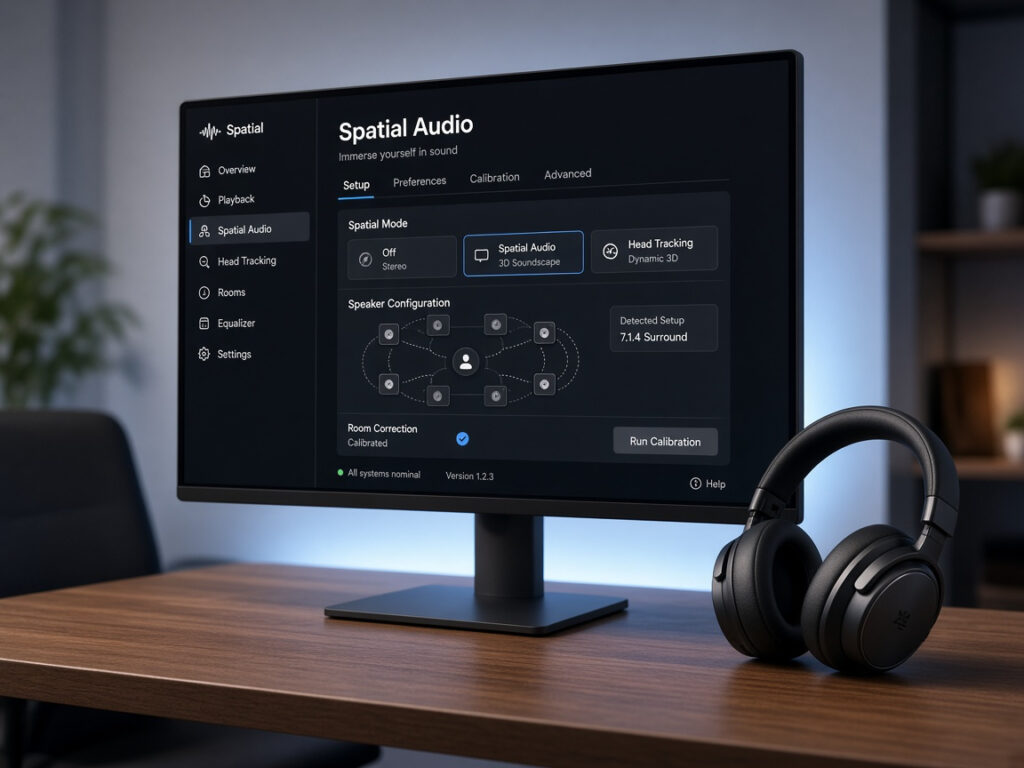
Windows Dolby Atmos brings object-based spatial audio to PCs — enabling height and positional sound reproduction from both headphones and connected speaker systems. Unlike channel-based surround formats, Atmos encodes audio as discrete objects with positional metadata, letting playback hardware render each sound in three-dimensional space. Whether you are routing audio through a dolby theater-grade AV receiver or listening over a standard headset, Windows processes Dolby Atmos through a unified software layer that adapts to your hardware configuration automatically.
Executive Summary
- Windows Dolby Atmos runs through the Dolby Access app from the Microsoft Store, covering both headphone binaural virtualization and HDMI home theater bitstream passthrough in a single application.
- Per Dolby’s published specifications, an Atmos mix supports up to 128 simultaneous audio objects alongside up to 16 channels of bed audio — a spatial resolution that channel-based 5.1 and 7.1 formats cannot match.
- Dolby Atmos for Headphones requires a paid licence inside Dolby Access; Dolby Atmos for Home Theater passthrough over HDMI is provided at no charge within the same app.
- Atmos content on Windows requires the dedicated app for each streaming service — Netflix, Disney+, Apple TV+, and Amazon Prime Video all support Atmos tracks, but browser-based playback bypasses the spatial audio pipeline entirely.
What Is Windows Dolby Atmos and How Does It Work?
Dolby Atmos is an object-based audio format developed by Dolby Laboratories. Rather than assigning audio elements to fixed channels — left, right, centre, left surround, and so on — Atmos encodes each sound as an independent object with X, Y, and Z coordinates. The renderer inside the playback device reads those coordinates and positions the sound in three-dimensional space, including height, in real time. Per Dolby’s published specifications, a single Atmos mix can carry up to 128 simultaneous audio objects alongside up to 16 channels of bed audio, giving sound designers spatial control that conventional channel-based formats cannot provide.
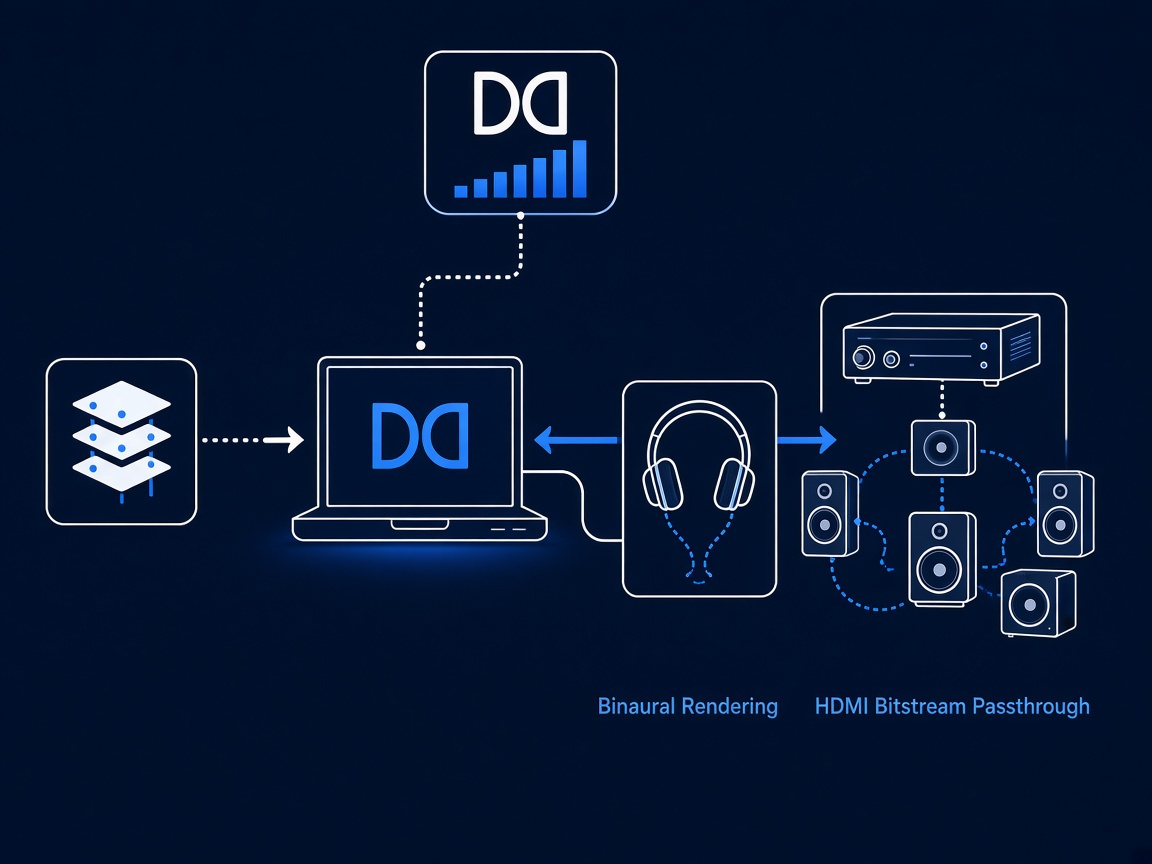
On Windows, Dolby Atmos integrates through the Windows Spatial Sound API, which Microsoft introduced in Windows 10 version 1703. The API exposes a spatial sound provider slot in the Windows audio stack. When installed, the Dolby Access app fills that slot with the Dolby Atmos renderer. For headphones, the renderer converts Atmos object metadata into a binaural output that simulates a speaker array around the listener. For HDMI-connected home theater systems, Windows can alternatively pass an encoded Atmos bitstream directly to a compatible AV receiver or soundbar, which then handles object-to-speaker rendering natively. If you want a broader foundation before working through the Windows-specific configuration, the complete 2026 guide to Dolby Atmos and immersive home theater audio covers the format from first principles through speaker configuration.
What Hardware Do You Need for Windows Dolby Atmos?
Hardware requirements differ sharply between the two Dolby Atmos paths on Windows. For headphone virtualization, the requirements are minimal: any stereo headphones — USB, 3.5 mm analogue, or Bluetooth — are compatible, because all processing occurs in software within the Dolby Access app. The headphones do not need to carry Dolby branding or certification. For home theater passthrough, the requirements are more specific: the PC must have an HDMI output capable of carrying an audio bitstream, and the downstream device must hold Dolby Atmos certification from Dolby Laboratories. A compatible GPU or motherboard with HDMI 2.0, or a DisplayPort-to-HDMI adapter with audio support, is sufficient for Atmos bitstream delivery.
The receiving device — typically an AV receiver or powered soundbar — must be rated for Dolby Atmos decoding. A standard stereo HDMI television is not sufficient. For speaker-based home theater configurations, layout matters: Atmos supports height configurations designated as .2 (two height channels), .4 (four), or .6, using either dedicated ceiling speakers or upward-firing Atmos-enabled drivers. Understanding which configuration is practical for your room before purchasing hardware is important. The hometheaterinfoline.com guide to Dolby Atmos speakers and what every home theater owner needs to know covers standard layouts, the distinction between upward-firing and ceiling-mounted height drivers, and the trade-offs at each tier.
- Headphones path: Any stereo headphones + Dolby Access app (paid licence)
- Home theater path: HDMI output on PC + Dolby Atmos–certified AV receiver or soundbar
- OEM laptops: Check whether Dolby Atmos is pre-licensed — many Dell, HP, and Lenovo models include it at no additional cost
- Bitstream passthrough: GPU driver must support HDMI audio bitstream output; update the driver if Atmos is not registering at the receiver
What Is the Dolby Access App and How Do You Get It?
Dolby Access is the Windows application that installs and manages the Dolby Atmos spatial sound provider. It is available as a free download from the Microsoft Store. The app has two primary functions: it handles licence activation for Dolby Atmos for Headphones, and it provides a configuration interface for sound profiles — Movie, Music, Voice, and Game — that adjust the rendering characteristics per use case. The free app download includes a trial period for Dolby Atmos for Headphones before purchase. Dolby Atmos for Home Theater, which enables bitstream passthrough to a compatible HDMI device, is included within the app at no additional charge.
Dolby Access is distinct from the Dolby Audio driver that some OEMs install on laptops. Many Dell XPS, HP Spectre, and Lenovo ThinkPad models ship with a pre-installed Dolby Atmos licence as part of their audio hardware configuration. On those devices, the Dolby Atmos for Headphones licence is already activated and no Microsoft Store purchase is required. To confirm: open Dolby Access from the Start menu — if the headphone licence shows as purchased, the OEM licence is in place. For custom desktop builds and laptops without an OEM Dolby licence, the Microsoft Store is the standard acquisition route. The Xbox platform also supports Dolby Atmos through the same Dolby Access purchase, with one licence covering both Windows and Xbox when using the same Microsoft account.
Dolby Atmos for Headphones vs. Home Theater Passthrough: Which Should You Choose?
These are fundamentally different signal paths, and the correct choice depends on your listening environment and hardware. Dolby Atmos for Headphones uses head-related transfer function (HRTF) processing to simulate a full speaker array using only two drivers. The renderer interprets Atmos object metadata and maps each object’s position to binaural cues — interaural time differences, spectral shaping, and elevation cues — before mixing to stereo. The result is a convincing approximation of three-dimensional space on standard headphones. The core limitation is inherent to binaural rendering: HRTF profiles in the Dolby Access app are generic by default, so individual listeners perceive height cues with varying accuracy. The perceived sound stage is typically narrower than a physical multi-speaker layout.
Home theater passthrough is a different proposition in almost every respect. Windows passes an encoded Dolby Atmos bitstream over HDMI to an AV receiver or soundbar that decodes and renders it natively using physical speaker drivers. No binaural simulation is involved. The spatial resolution is higher, the headroom for dynamic range is greater, and the experience matches the physical speaker layout the original mix was designed for. The trade-off is infrastructure cost and room requirements. For those evaluating soundbar options as the entry point to this path, the ranked comparison of the best Dolby Atmos soundbars for 2026 provides a structured assessment of current options across price tiers.
| Feature | Dolby Atmos for Headphones | Home Theater Passthrough |
|---|---|---|
| Hardware required | Any stereo headphones | Atmos-certified AV receiver or soundbar + HDMI output |
| Licence cost | Paid (Dolby Access) | Free within Dolby Access |
| Spatial rendering method | Binaural (HRTF simulation) | Physical speaker placement |
| Height audio | Virtualized from object metadata | Real ceiling or upward-firing drivers |
| Setup complexity | Low — software only | Medium to high — cabling, placement, calibration |
| Best use case | Solo listening, gaming, late-night, travel | Home cinema, music, group viewing |
How Do You Set Up Dolby Atmos on Windows Step by Step?
The setup procedure differs between the headphone and home theater configurations, but both paths begin with the Dolby Access app. Confirm your Windows version before starting: Dolby Atmos requires Windows 10 version 1703 or later and is fully supported on Windows 11. The steps below cover both configurations in sequence.
Setting Up Dolby Atmos for Headphones
- Open the Microsoft Store, search for Dolby Access, and install the free app.
- Launch Dolby Access. On the welcome screen, select Headphones as your device type.
- Start the free trial or complete the purchase for Dolby Atmos for Headphones when prompted.
- Once the licence is active, right-click the speaker icon in the Windows taskbar and select Spatial sound.
- Choose Dolby Atmos for Headphones from the submenu. Windows activates the spatial sound provider immediately.
- Return to Dolby Access to select a sound profile — Movie, Music, Voice, or Game — appropriate for your content type.
- Play Atmos-encoded content. A Dolby Atmos badge will appear in supported streaming apps when a compatible track is active.
Setting Up Dolby Atmos for Home Theater (HDMI Passthrough)
- Connect your PC to your AV receiver or soundbar using an HDMI cable. Confirm the receiver is powered and set to the correct HDMI input.
- Open Settings > System > Sound. Verify the HDMI audio output is listed and set as the default playback device.
- Open Dolby Access. If a compatible home theater device is detected on the HDMI output, the app will offer a Home Theater configuration option. No additional purchase is needed.
- Right-click the HDMI audio device in Sound settings and select Properties. Navigate to the Spatial sound tab and select Dolby Atmos for Home Theater.
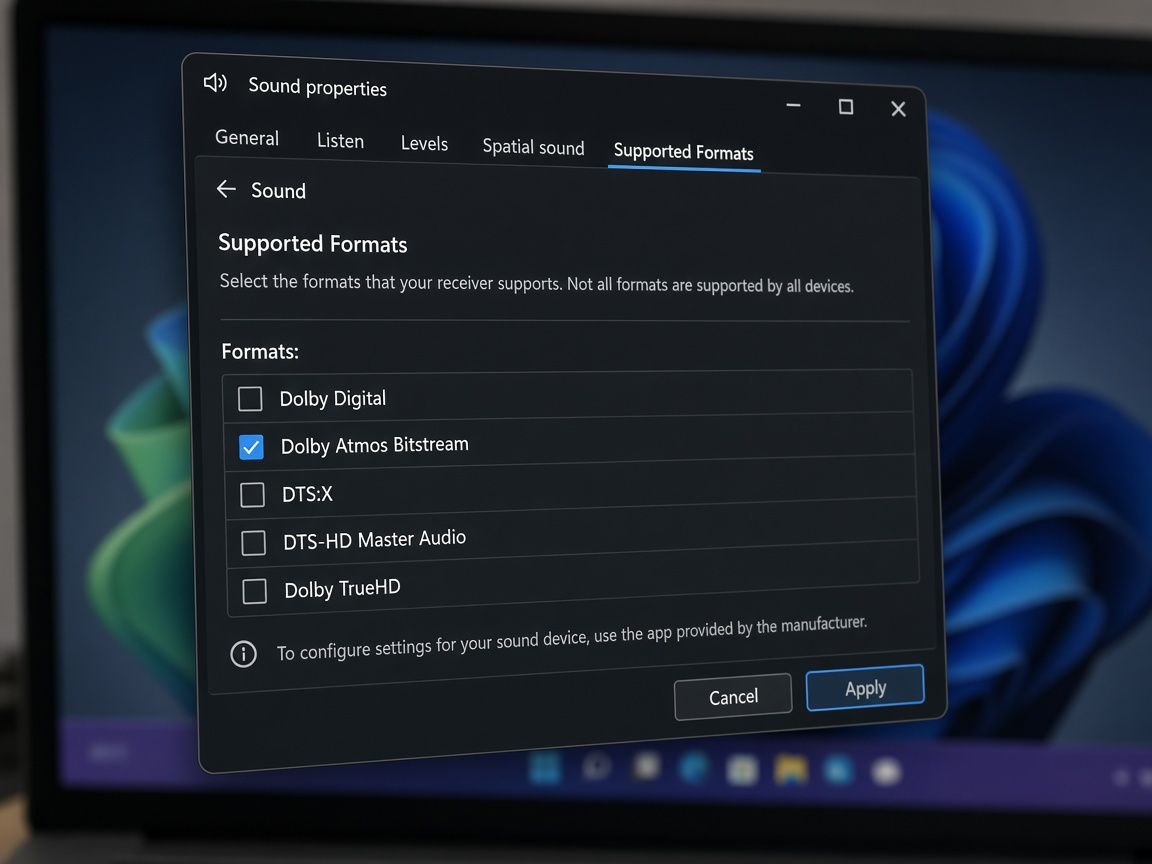
- Open the Supported Formats tab in the same Properties window. Check the box for Dolby Atmos (Bitstream). This instructs Windows to pass the encoded stream to the receiver rather than decoding it locally.
- On your AV receiver or soundbar, set the input audio mode to Bitstream — not Auto, which can default to stereo on some units. Refer to the receiver’s manual for the precise menu location.
- Play Atmos-encoded content and confirm the receiver’s display indicates Dolby Atmos decoding.
For those building out a full multi-speaker home theater alongside this PC configuration, the technical walkthrough on how to set up Dolby Atmos for home theater covers AV receiver configuration, speaker placement geometry, and room calibration in detail beyond the scope of a Windows-focused guide.
Which Streaming Services and Apps Support Dolby Atmos on Windows?
Dolby Atmos content availability on Windows is determined by both the streaming service and the application used to access it. Browser-based playback — through Chrome, Edge, Firefox, or any other browser — does not deliver Dolby Atmos even when spatial sound is active system-wide. The Windows Spatial Sound API is bypassed by browser audio rendering engines, so the Dolby Atmos renderer never receives the stream. For Atmos delivery from streaming content, the dedicated Windows app for each service is required. The following services support Dolby Atmos tracks through their Windows applications as of 2026:
- Netflix: Requires the dedicated Windows app from the Microsoft Store. Atmos tracks are available on the 4K (Ultra HD) subscription plan on supported titles.
- Disney+: Atmos available through the Disney+ Windows app on supported titles, without a separate tier requirement beyond a standard subscription.
- Apple TV+: Atmos available through the Apple TV Windows app on supported original titles.
- Amazon Prime Video: Atmos available through the Prime Video Windows app on supported titles.
- Fandango at Home (formerly Vudu): Atmos available on UHD purchases and rentals through the Windows app.
- Microsoft Movies & TV: Atmos tracks available on supported UHD title purchases through the native Windows application.
Identifying whether a specific title carries an Atmos track requires checking its detail page within the streaming app — most display audio format badges. Not every title on these platforms carries an Atmos mix; availability depends on the mix the studio delivered to the platform, not the platform’s general support for the format.
Dolby Atmos vs. Windows Sonic vs. DTS:X Ultra: What Are the Real Differences?
Windows presents several spatial sound options in its audio settings, and the technical distinctions between them affect real-world performance meaningfully. Windows Sonic for Headphones is Microsoft’s built-in spatial audio solution — free, requiring no third-party app, and available on all supported Windows versions. It converts 5.1 and 7.1 channel audio into a binaural headphone output using a fixed Microsoft HRTF model. Windows Sonic does not interpret Dolby Atmos object metadata natively; it treats the incoming stream as a standard multi-channel mix. The result is functional surround virtualization, but without per-object positional rendering on Atmos-encoded content.
Dolby Atmos for Headphones, by contrast, reads the object metadata in an Atmos track and renders each object’s position independently before mixing to binaural. The spatial resolution on Atmos-encoded content is meaningfully higher, particularly for height cues and moving objects. DTS:X Ultra, available through a competing Microsoft Store app, operates on a comparable principle using the DTS:X object format. For content mastered in Dolby Atmos, the Dolby renderer has a format-native advantage. For content without an Atmos mix — standard stereo PCM or generic surround — the perceptible differences between all three options narrow considerably, because all three are then processing a channel-based input rather than object metadata.
| Feature | Windows Sonic | Dolby Atmos (Headphones) | DTS:X Ultra |
|---|---|---|---|
| Cost | Free (built in) | Paid licence | Paid licence |
| Object-based rendering | No | Yes (Atmos tracks) | Yes (DTS:X tracks) |
| Height audio on headphones | Simulated from channels | Per-object from Atmos metadata | Per-object from DTS:X metadata |
| Home theater HDMI passthrough | No | Yes (free within Dolby Access) | Yes |
| OEM pre-licensing | Built into Windows | Common: Dell, HP, Lenovo, Surface | Less common |
| Xbox cross-licence | N/A | Yes (same Microsoft account) | No |
How Does Windows Dolby Atmos Perform for PC Gaming?
PC gaming is a primary use case for Dolby Atmos on Windows, and the technical advantage over standard surround is most pronounced in titles with native Atmos support. Games built with the Dolby Audio SDK render audio as Atmos objects in real time — footsteps, environmental sounds, projectiles, and ambient cues each carry live positional data that updates dynamically as the player moves. For headphone gaming, the Dolby Atmos renderer maps those objects to binaural positions with per-object precision. For competitive multiplayer titles where directional audio cues carry tactical information, the spatial resolution of object-based rendering provides finer positional granularity than a channel-based surround mix can achieve.
For games without native Atmos support — still the majority of the PC game library — Dolby Access applies its processing engine to the game’s existing stereo, 5.1, or 7.1 output. The Game profile in Dolby Access is tuned to emphasise spatial cues in that channel-based mix. This is processing applied to a non-Atmos source rather than native object rendering, and the distinction matters technically. Owner reports across PC gaming communities consistently describe improved spatial awareness with Dolby Atmos for Headphones compared to unprocessed surround output, particularly for headphone users, but the effect is an enhancement of an existing mix rather than the per-object rendering available on natively Atmos-encoded titles.
What Are the Most Common Windows Dolby Atmos Problems and How Do You Fix Them?
The majority of Windows Dolby Atmos issues trace to driver state, audio format settings, or app licence status rather than hardware failure. The following problems appear most frequently in community forums and owner reports, along with their established resolutions.
- Spatial sound option missing from taskbar menu: The Dolby Access app is not installed or the licence is inactive. Install or reinstall Dolby Access from the Microsoft Store and confirm the licence status inside the app before reconfiguring spatial sound.
- Receiver shows Dolby Digital or PCM Stereo instead of Dolby Atmos: The bitstream passthrough format is not enabled. In Windows Sound settings, right-click the HDMI output device, select Properties, navigate to the Supported Formats tab, and check Dolby Atmos (Bitstream). Also confirm the Spatial sound tab is set to Dolby Atmos for Home Theater.
- Atmos settings reset after a Windows update: Windows updates can clear spatial sound provider selections. After updating, right-click the speaker icon, go to Spatial sound, and re-select the appropriate Dolby Atmos option.
- Dolby Access not launching or crashing on startup: Sign out of the Microsoft Store, restart the system, and sign back in. If the issue persists, uninstall Dolby Access, restart, and reinstall. OEM Dolby audio driver conflicts can also cause launch failures — check Device Manager for audio driver updates and install the latest version from the hardware manufacturer’s support page.
- No Atmos badge in the Netflix app despite correct system settings: Confirm the Windows Netflix app — not a browser — is in use, the account is on the 4K subscription plan, and the title being played carries an Atmos mix. Edge browser does not deliver Atmos even with Dolby Access active system-wide.
- Bluetooth headphones not triggering Dolby Atmos spatial processing: Some Bluetooth audio codecs and headphone firmware do not support spatial sound providers. If Dolby Atmos for Headphones is selected but audio sounds flat or spatially collapsed, switch the Bluetooth headphone audio format to PCM stereo in Windows Sound settings and re-enable the Dolby Atmos spatial sound option.
What Does the Next 12–24 Months Hold for Dolby Atmos on Windows?
Several technical trajectories are likely to influence the Windows Dolby Atmos experience through 2027. Personalised HRTF is the most significant outstanding limitation in the headphone path. Current HRTF profiles in Dolby Atmos for Headphones are generic — they model an average ear geometry — which means externalization, the perception of sound originating outside the head rather than from within it, varies substantially between listeners. Machine-learning-based HRTF personalisation, in which a listener’s ear shape or brief listening test generates an individualized profile, is an active area of development across the spatial audio industry. If Dolby integrates personalized HRTF into Dolby Access, the headphone experience would more closely approach the physical speaker baseline for a wider range of users.
At the content level, music mixed in Dolby Atmos has expanded significantly across streaming platforms throughout 2025 and 2026, with Apple Music’s spatial audio catalogue and Tidal’s Atmos music library continuing to add titles. As more PC game studios adopt the Dolby Audio SDK for real-time object rendering, the native gaming use case strengthens further. On the hardware side, HDMI 2.1 adoption across mid-range GPU and motherboard segments improves audio bandwidth headroom alongside high-resolution video. For anyone planning a full home theater build that includes a Windows PC as a source device, the practical guide to setting up a complete home theater system provides a systematic framework for planning from source device through speaker placement and calibration.
Frequently Asked Questions: Windows Dolby Atmos
Is Dolby Atmos on Windows free?
Dolby Atmos for Home Theater — which passes an Atmos bitstream over HDMI to a compatible receiver or soundbar — is included in the Dolby Access app at no charge. Dolby Atmos for Headphones, which applies binaural virtualization to any stereo headphones, requires a paid one-time licence available through Dolby Access in the Microsoft Store. Many OEM laptops from Dell, HP, and Lenovo include the headphone licence pre-activated as part of the device’s audio hardware configuration.
Does Windows Dolby Atmos work with any headphones?
Yes. Dolby Atmos for Headphones processes audio entirely in software and outputs a standard binaural stereo signal that any stereo headphones can reproduce. The headphones do not need to carry Dolby branding or certification. USB, 3.5 mm, and most Bluetooth headphones are compatible, though some Bluetooth codec limitations can attenuate the spatial processing effect.
Can I use Dolby Atmos on Windows 11 without installing the Dolby Access app?
Not for full Dolby Atmos processing. Windows Sonic for Headphones is built into Windows 11 and requires no additional app, but it does not read Dolby Atmos object metadata natively. The Dolby Access app is required to register the Dolby Atmos spatial sound provider. Devices with an OEM Dolby Atmos licence may have the app pre-installed; check the Start menu before searching the Microsoft Store.
Why does my AV receiver show Dolby Digital instead of Dolby Atmos?
The bitstream passthrough format is not enabled in Windows. Right-click the HDMI audio output device in Windows Sound settings, select Properties, navigate to the Supported Formats tab, and confirm Dolby Atmos (Bitstream) is checked. Also verify the Spatial sound tab shows Dolby Atmos for Home Theater as active. Some GPU drivers require an update before HDMI Atmos bitstream output is available; check the GPU manufacturer’s driver release notes for audio bitstream support.
Does Dolby Atmos on Windows work with Netflix and other streaming services?
Yes, but only through the dedicated Windows app for each service — not a browser. Netflix Atmos requires the Windows app from the Microsoft Store and a 4K subscription plan. Disney+, Apple TV+, and Amazon Prime Video deliver Atmos through their respective Windows apps on supported titles. Browser-based playback for all of these services bypasses the Windows spatial audio pipeline and will not output Dolby Atmos regardless of system settings.
Does one Dolby Access purchase cover both Windows and Xbox?
Yes. The Dolby Atmos for Headphones licence purchased through the Microsoft Store applies to both Windows PCs and Xbox consoles when logged in with the same Microsoft account. This makes the single licence applicable across both platforms without an additional purchase — a practical advantage for users who game on both.
What is the difference between Dolby Atmos and Dolby Audio on a Windows laptop?
Dolby Audio is a speaker tuning and EQ enhancement technology that many OEM laptops apply to their built-in speaker output. It improves the acoustic character of the laptop’s speakers but is not an object-based spatial audio format. Dolby Atmos adds the three-dimensional object-based spatial rendering layer, applied to headphone output or passed through HDMI to a home theater system. Some laptops include both: Dolby Audio for internal speaker tuning and Dolby Atmos for headphone or external speaker use.
What Should You Do Next to Get Windows Dolby Atmos Running?
Getting Dolby Atmos working correctly on Windows is a methodical process. The implementation sequence below covers both use cases from installation through verification.
- Check for an existing OEM licence first. Open or install the Dolby Access app from the Microsoft Store. If Dolby Atmos for Headphones shows as purchased, an OEM licence is already active and no payment is required.
- Identify your playback path. Decide whether you are using headphones, a connected soundbar, or a full AV receiver system. Each path has different hardware requirements and Windows configuration steps.
- Configure Windows audio settings. Right-click the speaker icon in the taskbar, navigate to Spatial sound, and activate the correct Dolby Atmos option for your hardware. For home theater, also open the HDMI device Properties and confirm Dolby Atmos (Bitstream) is checked in Supported Formats.
- Verify with Atmos-encoded content. Use the dedicated Windows app for Netflix, Disney+, or Apple TV+ and play an Atmos-encoded title. Confirm the app displays an Atmos badge or the AV receiver shows Dolby Atmos decoding on its front panel.
- Troubleshoot methodically if Atmos does not activate. Work through driver updates, format settings, and Dolby Access reinstallation before assuming a hardware fault. The majority of activation failures are software configuration issues with established fixes.
The hometheaterinfoline.com editorial team covers the full range of Dolby Atmos configurations across both PC-based and dedicated home theater hardware. This guide addresses the Windows software and configuration layer specifically. For receiver selection, speaker placement, or acoustic treatment within a full room build, the broader technical resources on this site cover each topic in depth.
— **Schema Markup (shown separately for reference):** Embedded above as a “ JSON-LD block. Contains Article, FAQPage, and HowTo schemas.