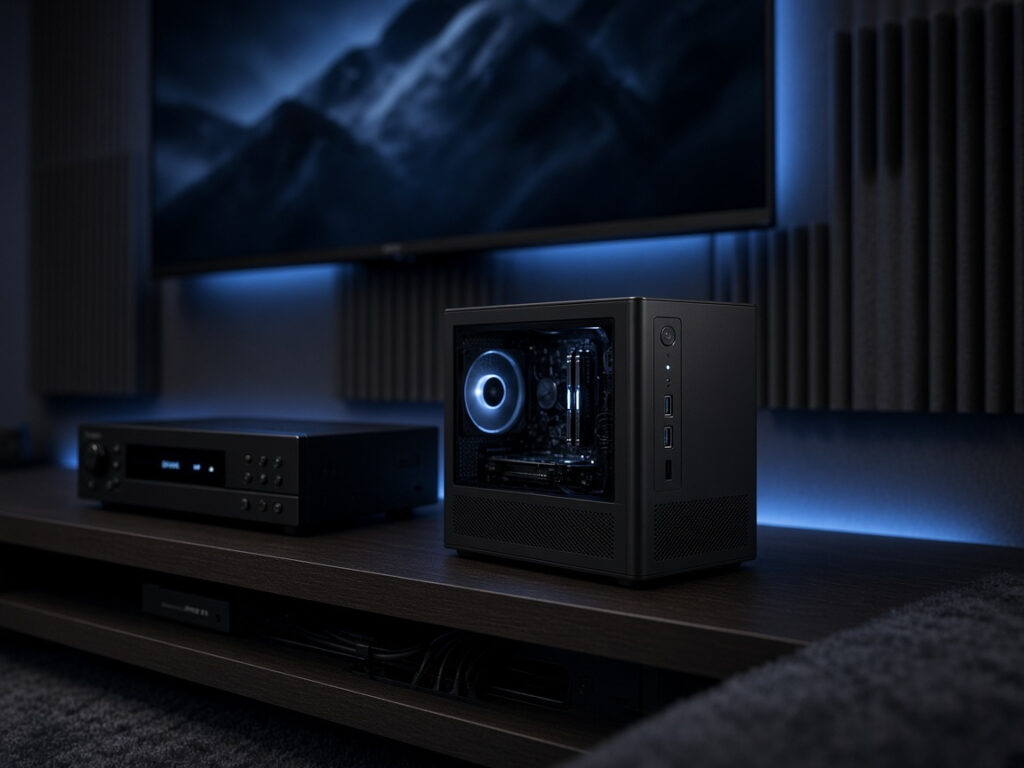
The home theater PC is the most flexible device you can place in an entertainment center. It connects to your TV and AV receiver, runs media-center software, and handles 4K HDR playback, local media libraries, streaming services, and lossless audio passthrough from a single box. This guide covers every component and configuration step.
Executive Summary
- An HTPC combines PC-level flexibility with dedicated media decode, supporting 4K HDR, all major streaming services, and virtually unlimited local storage expandability from a single device.
- Core hardware requirements center on a GPU with HDMI 2.1 output, support for AV1 hardware decode, and a low-TDP processor to maintain near-silent operation in a living room environment.
- Lossless audio passthrough — Dolby TrueHD, DTS-HD Master Audio, Dolby Atmos — requires bitstream output mode in the media player and a compatible AV receiver or eARC-equipped display.
- An HTPC outperforms dedicated streaming sticks on codec flexibility, local storage capacity, long-term app support, and hardware upgrade path.
What Is a Home Theater PC?
A home theater personal computer is a standard PC chassis — typically a compact Mini-ITX or small-form-factor design — purpose-built to live inside an entertainment center rather than on a desk. It connects to a television or projector via HDMI, feeds audio to an AV receiver or eARC-capable soundbar, and runs media-center software that presents your library and streaming services through a 10-foot interface optimized for remote-control navigation. The hardware is architecturally identical to any desktop PC; the distinction lies in the thermal envelope, the case dimensions, and the software environment configured around passive media consumption.
What makes a computer home theater platform fundamentally different from a smart TV or streaming stick is operating-system access. On a full desktop OS there are no platform-imposed restrictions on codec installation, app availability, or storage configuration. You can install any media player, any VPN, any streaming service available for the platform, and any file management utility. That flexibility is the defining advantage of the HTPC approach — and it also explains why it demands more deliberate setup than a plug-and-play device.
The HTPC category spans a wide range of hardware. At the minimal end, a repurposed office PC or Intel NUC-style mini-PC handles streaming and 4K playback within a compact footprint. At the high end, a purpose-built silent machine with a discrete GPU, NVMe SSD, multi-terabyte HDD, and passive or near-passive cooling delivers Blu-ray rip quality with zero audible noise during quiet scenes. The right specification depends entirely on use case — and this guide covers both extremes.
What Hardware Does an HTPC Need?
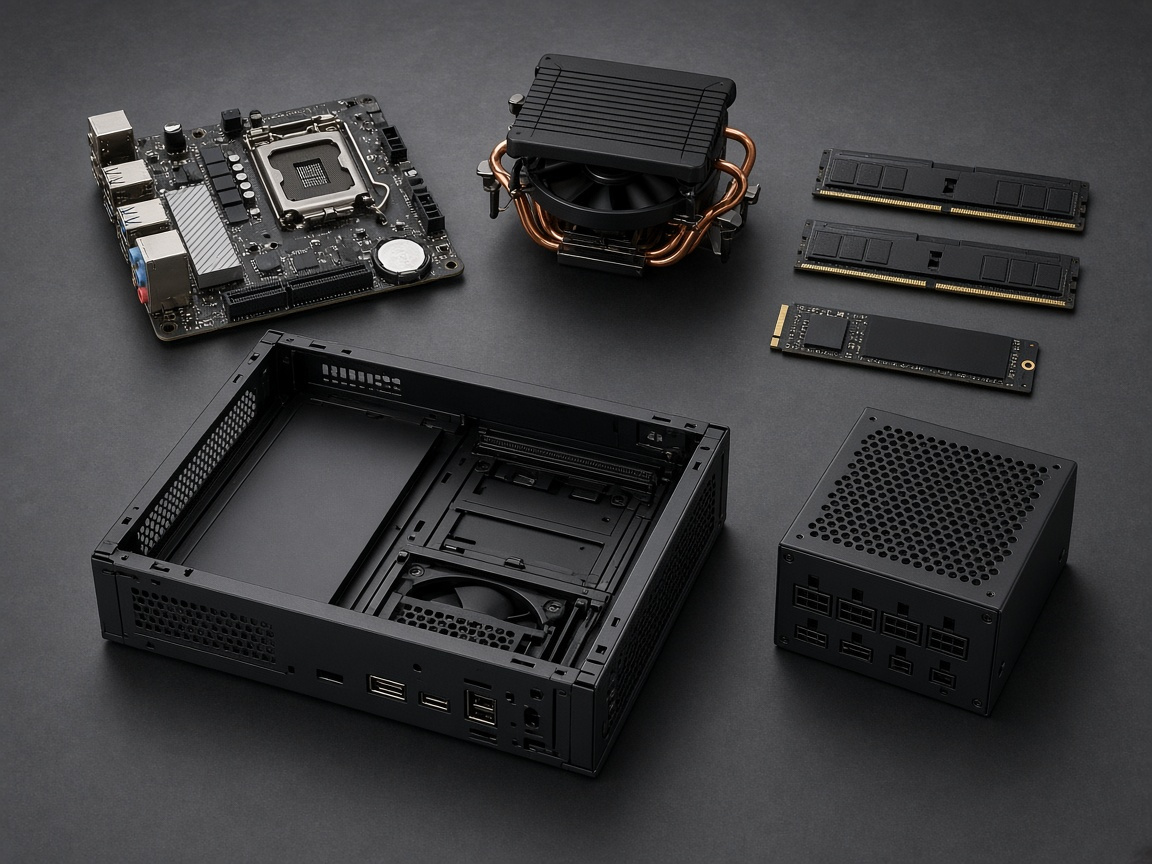
HTPC hardware requirements are defined by the most demanding task the machine will perform. 4K HDR local playback with lossless audio passthrough is the benchmark for a modern build. Meeting it does not require top-tier gaming hardware, but it does require specific codec-decode capabilities, display output bandwidth, and thermal characteristics that budget or outdated components fail to deliver reliably. The table below outlines minimum and recommended specifications for a build targeting 4K HDR performance.
| Component | Minimum for 4K HDR | Recommended | Key Notes |
|---|---|---|---|
| CPU | Intel Core i3 (12th gen+) / AMD Ryzen 5 | Intel Core i5 13th gen / AMD Ryzen 7 | Low TDP (35–65 W) preferred for silent builds |
| GPU | Intel UHD 770 / AMD Radeon 780M (iGPU) | NVIDIA RTX 4060 / AMD RX 7600 (discrete) | Must support HDMI 2.1 output and AV1 hardware decode |
| RAM | 8 GB DDR4 (dual-channel) | 16 GB DDR5 (dual-channel) | Dual-channel configuration improves iGPU memory bandwidth |
| OS Storage | 256 GB NVMe SSD | 500 GB NVMe SSD (PCIe 4.0) | NVMe for OS and apps; separate drive for media library |
| Media Storage | 2 TB HDD or NAS share | 4–8 TB HDD or NAS | 4K Remux files typically range from 40–80 GB each |
| Display Output | HDMI 2.0 (18 Gbps) | HDMI 2.1 (48 Gbps) | HDMI 2.1 required for 4K at 120 Hz and VRR support |
| Network | Gigabit Ethernet or Wi-Fi 6 | Gigabit Ethernet (wired) | Wired connection strongly recommended for NAS access |
| PSU | 250 W | 400–550 W fully modular | Lower wattage = less heat and fan noise in compact chassis |
One frequently underweighted component is the network adapter. Streaming 4K HDR content from a NAS or over the internet requires sustained throughput that Wi-Fi 5 can struggle to deliver under household RF congestion. A wired Gigabit Ethernet connection is the most reliable choice. Wi-Fi 6 (802.11ax) provides sufficient bandwidth for most streaming scenarios when a cable run is impractical, but its latency variance can cause buffering on large Blu-ray Remux files pulled across a NAS over extended reads.
Which Processor and GPU Work Best for an HTPC?
The processor choice shapes the HTPC’s thermal profile and noise floor as directly as it shapes raw performance. Home theater builds favor processors with capable integrated graphics and a thermal design power at or below 65 W. Intel’s 12th and 13th generation Core i5 and i7 processors include the Intel UHD 770 iGPU, which delivers hardware-accelerated decode for H.265/HEVC, AV1, and VP9 — the three codecs that account for the vast majority of 4K streaming and local playback workloads. The decode capability is a hardware feature of the GPU silicon, not a software approximation, which means it runs with minimal CPU overhead and very low heat output.
AMD’s Ryzen 7000 series processors with the Radeon 780M integrated graphics unit provide the strongest iGPU option in AMD’s lineup for HTPC applications. The 780M handles 4K AV1 decode in dedicated hardware without burdening the CPU cores, and its HDMI 2.1 output supports 4K at 60 Hz at full color depth. Mini-PC platforms built around the Ryzen 7 7840U — a 28 W mobile processor per AMD’s published specifications — combine the 780M iGPU with low power consumption and fanless or near-fanless thermal designs. For a pure media machine where silence and compact dimensions are priorities, this platform is among the most practically well-suited options available in 2026.
When a discrete GPU is included in the build, NVIDIA’s RTX 40 series and AMD’s RX 7000 series both support AV1 hardware decode and deliver full HDMI 2.1 output at 48 Gbps. The practical advantage of a discrete GPU over an iGPU in an HTPC context is not decode throughput — both handle 4K comfortably — but output bandwidth. Discrete cards provide verified full HDMI 2.1 at the complete 48 Gbps specification, which matters for 4K at 120 Hz, Dolby Vision display compatibility, and VRR (Variable Refresh Rate) support. A discrete GPU also becomes relevant if the same machine doubles as a gaming PC alongside its media duties.
What Software Should You Run on a Home Theater PC?
Software defines the HTPC experience more directly than any hardware specification. The two primary approaches are running Windows 11 as the base OS with a media-center application layered on top, or booting a dedicated media-center OS like LibreELEC directly into Kodi. Both approaches have distinct trade-offs that make them suited to different use cases. The choice between them is essentially a choice between maximum streaming service compatibility and maximum media-center simplicity.
Windows 11 as the HTPC Base
Windows 11 offers the broadest app compatibility of any HTPC OS choice. Netflix, Disney+, Apple TV+, and Amazon Prime Video deliver Widevine L1 DRM-protected 4K playback through their native Windows Store apps — a protection level that unlocks the highest available streaming quality. This is not reliably replicated on Linux-based alternatives. The trade-offs are boot time, background services consuming RAM, and the need to configure automatic login and media-center app launch on startup to deliver a seamless appliance experience rather than a standard desktop.
Kodi and LibreELEC
Kodi is an open-source media center application that organizes local libraries, streams via add-ons, and presents everything through a TV-optimized 10-foot interface controlled entirely by remote. LibreELEC is a minimal Linux distribution that boots directly into Kodi, eliminating the overhead of a full desktop OS. This combination produces very fast boot times and a purpose-built media interface. The key limitation is DRM: Kodi does not natively support Widevine L1, so Netflix, Disney+, and similar services require either workarounds or a secondary streaming device alongside the HTPC for protected 4K content. For users whose libraries are entirely local — ripped Blu-rays, downloaded files, local video — this limitation is irrelevant.
Plex and Jellyfin
Plex and Jellyfin are media server platforms that organize local libraries and serve them to any client on the network or over the internet. Running either platform on the HTPC itself means the same machine serves as both server and playback client — efficient when the library is local. Jellyfin is fully open-source with no subscription requirement. Plex offers a free tier alongside a Plex Pass subscription that unlocks hardware-accelerated transcoding and additional features. For users who want to access their library from multiple devices or remote locations, the server-client model makes both platforms a practical alternative to Kodi’s local-first architecture.
Key Software and Diagnostic Utilities
- Kodi — open-source media center, local library management, remote-first interface, add-on ecosystem
- Plex Media Server / Plex HTPC — server-client architecture, hardware transcoding (Plex Pass), multi-device access
- Jellyfin — fully open-source Plex alternative, no subscription required, active development community
- MPC-HC with madVR — high-quality video renderer, recommended for HDR tone-mapping on Windows
- LibreELEC — minimal Linux OS booting directly into Kodi, eliminates desktop OS overhead
- MediaInfo — displays full codec, container, audio track, and HDR metadata for any media file
- HWiNFO64 — comprehensive hardware monitoring and thermal logging during active playback
- GPU-Z — GPU specification verification, HDMI version and bus width confirmation
- AVS HD 709 test patterns — free test pattern suite for display geometry and color calibration
How Do You Connect an HTPC to Your AV System?
The standard connection chain for a home theater PC runs: HTPC → AV receiver → display. The GPU connects via HDMI 2.1 to the AV receiver’s HDMI input, and the receiver passes the processed video signal downstream to the TV or projector while decoding the audio stream. This routing ensures all audio formats — including lossless Dolby TrueHD and DTS-HD Master Audio — pass through the receiver in bitstream form for hardware decoding, while the receiver’s HDMI switching and format-conversion capabilities handle signal distribution to the display.
HDMI 2.1’s 48 Gbps bandwidth specification supports 4K at 120 Hz, 8K at 60 Hz, Dynamic HDR, Variable Refresh Rate (VRR), and Auto Low Latency Mode (ALLM). For the full HDMI 2.1 specification to be maintained through an AV receiver to a 4K@120Hz display, every component in the chain must comply: the GPU’s HDMI 2.1 output, the cable (rated for 48 Gbps), and the receiver’s HDMI 2.1 passthrough board. A single HDMI 2.0 component bottlenecks the entire chain to 18 Gbps, limiting output to 4K at 60 Hz maximum regardless of what the other devices support. For a complete guide to setting up the full signal chain beyond the PC, the home theater system setup guide covers receiver placement, speaker wiring, and input routing in detail.
CEC (Consumer Electronics Control), carried over HDMI, enables the HTPC to respond to the TV remote’s power and volume commands. When CEC is configured correctly in Windows or Kodi, pressing the TV remote’s power button puts the HTPC into sleep mode, and turning the TV on wakes it — producing a single-remote experience with no additional hardware. CEC reliability varies meaningfully between manufacturers and device generations. Testing it before committing to it as the primary interface is worth the five-minute investment. The complete home theater installation guide covers physical cable routing, rack placement, and full signal-chain configuration steps in detail.
If a full AV receiver is not part of the setup, the HTPC can connect directly to the TV via HDMI and use the TV’s eARC (Enhanced Audio Return Channel) port to send audio downstream to a soundbar or amplifier. eARC supports Dolby TrueHD and DTS-HD Master Audio at full lossless quality — making it a viable alternative to a dedicated receiver for configurations where a separate receiver is not practical or affordable.
If you prefer to leave physical installation and cable management to specialists rather than handling it yourself, Walmart home theater installation services and similar third-party professional setup options can handle the hardware side while you focus on software configuration.
What Case and Form Factor Is Best for an HTPC?
HTPC case selection is driven by three constraints: motherboard form factor compatibility, thermal clearance for the chosen cooler, and physical dimensions compatible with the entertainment unit shelf or AV rack bay. The Mini-ITX form factor — standardized at 170 × 170 mm — dominates HTPC builds because it enables genuinely compact chassis that sit alongside AV components without occupying disproportionate shelf space. Micro-ATX is the next step up, used when additional expansion slots or more internal drive bays are needed for a larger local library.
Horizontal “HTPC chassis” cases — sometimes called low-profile or rack-style enclosures — are purpose-designed for entertainment units. They accept Mini-ITX or Micro-ATX motherboards and use slim CPU coolers rated for 65 W TDP or lower. Silverstone’s GD series, Fractal Design’s Node series, and Streacom’s fully passive enclosures are well-regarded options in this category. Streacom’s fanless cases use the aluminum chassis itself as a heat spreader, transferring processor heat to the outer shell entirely without fans. This design produces zero mechanical noise — a significant advantage in acoustically treated viewing rooms where any fan becomes audible during quiet passages in a film.
Mini-PC platforms — including devices built around AMD’s Ryzen 7000 and 8000 series mobile processors and various Intel-based compact designs — represent the smallest practical HTPC form factor. Pre-assembled or semi-custom, these machines are roughly the size of a thick paperback book. They trade discrete GPU options and internal drive expandability for near-silent operation, minimal footprint, and competitive pricing. For a media-focused build that does not require a physical disc drive or multi-terabyte internal storage, mini-PC platforms are a highly practical starting point in 2026.
How Do You Configure 4K HDR and Lossless Audio on an HTPC?
Getting 4K HDR and lossless audio working correctly requires explicit configuration at the OS level, the GPU driver level, and within the media-player application. Auto-detection works inconsistently across different hardware and receiver combinations; manual configuration is the reliable path. The following sequence covers the full chain from display output to verified audio decode at the receiver.
- Set display resolution and refresh rate. In Windows Display Settings, select the connected display and set it to its native resolution — 3840 × 2160 for a 4K display — and the target refresh rate (60 Hz or 120 Hz depending on the TV’s capability and the HDMI version confirmed in use).
- Enable HDR at the OS level. Windows 11’s HDR setting (Settings → System → Display → HDR) must be enabled for the connected display. If your media player handles HDR tone-mapping internally — as MPC-HC with madVR does — disable Windows Auto HDR to avoid double tone-mapping and color clipping on HDR content.
- Configure GPU color output. In NVIDIA Control Panel or AMD Radeon Software, set the output color format to RGB Full or YCbCr444 at 10-bit or 12-bit color depth, depending on what the display and receiver report as supported in their EDID handshake data.
- Select bitstream audio output. In your media player — Kodi (Settings → System → Audio), MPC-HC (Options → Audio), or Plex HTPC (Audio settings) — set the audio output mode to bitstream passthrough rather than PCM decode. This sends the raw Dolby TrueHD or DTS-HD Master Audio stream to the AV receiver, preserving all channels, metadata, and Dolby Atmos object data for hardware decoding inside the receiver.
- Verify audio decode at the receiver. With a Dolby TrueHD source playing, the receiver’s front panel display should confirm “Dolby TrueHD” or “Dolby Atmos” decoding. If it shows PCM 5.1 or PCM 2.0, the bitstream path is broken — recheck the HDMI cable specification (must be 48 Gbps rated) and the media player’s selected audio output device.
- Test HDR tone-mapping. Play a known HDR10 source file and check that specular highlights clip correctly without crushing midtone shadow detail. If the image appears blown out, the TV’s peak brightness or HDR tone-mapping setting needs adjustment — this is a display calibration issue, not a PC configuration error.
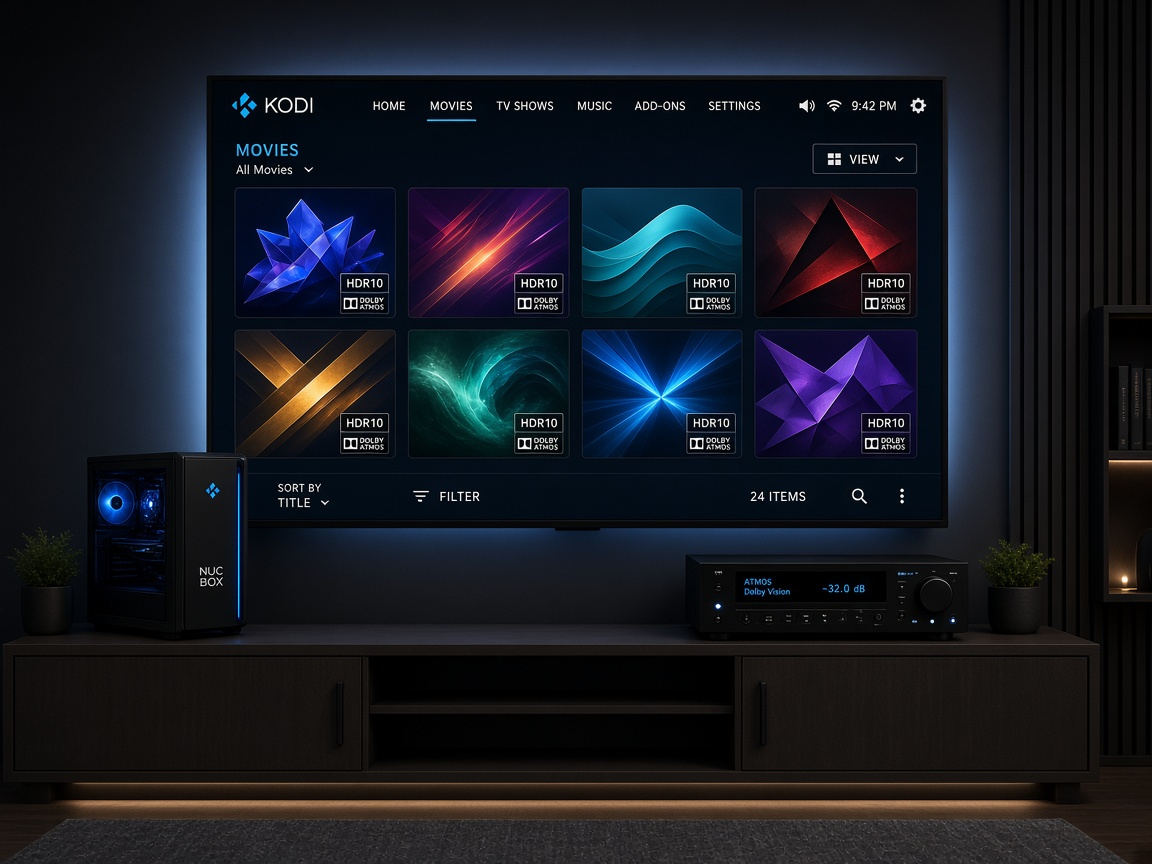
Lossless formats like Dolby TrueHD and DTS-HD Master Audio were originally engineered for high-end cinema releases — the same spatial audio technology behind a full Dolby theater decode chain — and a correctly configured HTPC with bitstream passthrough delivers that full pipeline into your living room. For display calibration, room acoustics, and audio level setup that complements these technical settings, the guide on watching movies at home in theater quality covers the complete picture alongside the PC steps above.
How Does an HTPC Compare to Dedicated Streaming Devices?
The choice between an HTPC and a dedicated streaming device — Apple TV 4K, Roku Ultra, Amazon Fire TV Stick 4K Max, NVIDIA Shield Pro — comes down to what the system must do and how much ongoing configuration is acceptable. Each platform makes different trade-offs across codec support, audio passthrough, local storage, and cost of entry.
| Feature | HTPC | Streaming Stick / Box |
|---|---|---|
| Local media support | Full — any codec, any container | Limited — depends on app or firmware |
| Local storage | Multi-terabyte internal or NAS | Minimal — 16–128 GB typical |
| DRM streaming (Netflix 4K) | Yes — via native Windows Store apps, Widevine L1 | Yes — certified Widevine L1 on most current devices |
| Codec flexibility | Full — install any codec or container handler | Fixed to firmware-supported codec list |
| Lossless audio passthrough | Full — Dolby TrueHD, DTS-HD MA, Atmos bitstream | Varies — NVIDIA Shield Pro supports full passthrough; most sticks do not |
| Hardware upgradeable | Yes — CPU, GPU, RAM, storage independently | No — replace entire unit when outdated |
| Power consumption (idle) | 15–65 W typical | 1–5 W typical |
| Setup complexity | High — requires deliberate configuration | Low — guided setup, minimal decisions |
The NVIDIA Shield Pro is the streaming device that most closely approximates HTPC capability. It supports full lossless audio passthrough, runs a local Plex Media Server instance, handles AV1 decode in hardware, and delivers broad codec support through its Android TV OS. For users who want HTPC-level audio performance without the full complexity of a PC build, the Shield Pro occupies a viable middle ground. However, it still cannot match the HTPC’s local storage expandability, OS-level flexibility, or independence from a manufacturer’s platform decisions.
When evaluating an HTPC as part of a broader installation, the complete home theater setup guide walks through how the PC fits within the wider system alongside display selection, speaker placement, and room acoustic considerations.
How Do You Control Your Home Theater PC?
HTPC control is a usability problem that hardware specifications do not solve. Keyboard and mouse work for initial setup but fail as a living-room interface. The ideal control solution depends on the media-center software, the AV equipment in the room, and whether users are comfortable managing a small additional device.
IR-to-keyboard adapters are the most practical path to single-remote operation. The most widely used option — the Flirc USB receiver — allows any IR remote to control the HTPC by translating IR button presses into keyboard keystrokes. From Kodi’s or Plex’s perspective, every remote button press is simply a standard keyboard event. Flirc requires one-time programming via its PC configuration application, after which it integrates seamlessly with any universal remote already in use for the AV system.
Wireless keyboards with integrated trackpads — such as the Logitech K400 Plus — provide a convenient fallback for settings changes, software installation, and configuration work without requiring a full desktop setup. For users heavily invested in Kodi or Plex, official and community-developed remote apps for Android and iOS communicate with both platforms over the local network, adding touchscreen navigation and voice search to the control options without additional hardware beyond the phone itself.
CEC passthrough over HDMI handles basic playback control — play, pause, stop, track skip, volume — using the TV remote already in the room. When CEC is reliably implemented across the AV chain, it delivers the most seamless experience with no additional remote or adapter required. CEC reliability varies meaningfully between manufacturers and device generations; testing it before committing to it as the primary interface is worth confirming early in the build process.
How Do You Future-Proof Your Home Theater PC?
Future-proofing an HTPC means selecting a platform that accommodates the content standards and codec requirements of the next two to three years without requiring a full rebuild. Several technical trends are worth factoring into a 2026 build when choosing between component generations and form factors.
AV1 is now the dominant streaming codec. YouTube, Netflix, and other major platforms have adopted AV1 for 4K delivery because it achieves higher efficiency than H.265/HEVC at equivalent quality. All current-generation GPUs from Intel (Arc series and UHD 770+), AMD (RDNA 2 architecture and later), and NVIDIA (RTX 30 series and later) include AV1 hardware decode as a silicon-level feature per their published specifications. Building on a platform older than these generations risks software-decode fallback, which dramatically increases CPU load and power consumption during 4K AV1 playback and can produce thermal throttling in compact chassis.
HDMI 2.1 is now a baseline requirement, not a premium feature. As more displays ship with 4K at 120 Hz panels, VRR support, and Dolby Vision compatibility, an HDMI 2.1 GPU output ensures the HTPC does not bottleneck future display upgrades. Choosing a GPU or mini-PC platform with verified 48 Gbps HDMI 2.1 output avoids a forced component replacement within twelve to eighteen months. DisplayPort 2.1 — which supports up to 80 Gbps — is also worth considering for monitor-centric setups, though most television-centric AV receivers route via HDMI rather than DisplayPort in the living room environment.
Looking at the next 12–24 months, several additional developments are worth tracking. Wi-Fi 7 (802.11be) integration is appearing in new mini-PC and motherboard platforms and will further reduce latency variance for NAS-based media access. HDR10+ and Dolby Vision content libraries on streaming platforms continue to expand, making dynamic-metadata HDR support — available on most current-generation GPUs — increasingly valuable for the full picture. ARM-based mini-PC platforms are maturing in both Windows and Linux ecosystems, potentially shifting the compact HTPC category toward even lower power envelopes than current x86 options deliver. Planning for storage expandability now — a second M.2 slot, additional SATA ports, or NAS integration — matters more than chasing the latest drive speed standard.
The hardware inside the HTPC is only part of the experience. Pairing a capable build with the right room configuration — including appropriate home theater seats at the correct viewing distance for the screen size — ensures the picture and audio performance of the PC is matched by physical comfort during long viewing sessions. If you are designing the full room from scratch, the home theater by design practical guide covers layout, acoustic treatment, and equipment integration as a unified planning process.
Frequently Asked Questions About Home Theater PCs
Can a home theater PC replace a streaming device entirely?
An HTPC running Windows 11 can replace a streaming device for most purposes. Native Windows Store apps for Netflix, Disney+, Amazon Prime Video, and Apple TV+ deliver Widevine L1-protected 4K HDR playback with Dolby Atmos audio. The main caveat is that Netflix caps streaming quality at 1080p on Chrome and Firefox browsers; the official Windows Store app is required for 4K. With the correct apps installed, an HTPC handles everything a streaming stick does — plus local media, physical disc playback, and full codec flexibility — from one device.
Does an HTPC need a dedicated graphics card?
Not for media playback alone. Modern integrated graphics from Intel (UHD 770 and Iris Xe) and AMD (Radeon 780M in Ryzen 7000 series processors) handle hardware-accelerated 4K HDR decode of H.265 and AV1 without a discrete GPU, per their published hardware specifications. A dedicated GPU becomes necessary only if you require 4K at 120 Hz output at full HDMI 2.1 bandwidth, Dolby Vision display compatibility beyond what a specific iGPU’s HDMI port provides, or gaming capability alongside media duties. For a pure media machine, an integrated GPU keeps the build compact, cool, and near-silent.
What is the difference between PCM and bitstream audio output on an HTPC?
PCM (Pulse-Code Modulation) means the HTPC decodes the audio internally and sends a decoded digital signal to the AV receiver. Bitstream means the HTPC passes the encoded audio stream — Dolby TrueHD, DTS-HD Master Audio — directly to the receiver without decoding it, so the receiver performs hardware decoding. Bitstream is preferred for lossless formats because it preserves all channels, full metadata, and Dolby Atmos object-based height data. PCM decode on the PC is acceptable for stereo or basic surround but loses Atmos height-channel information in most software implementations.
How much storage does a home theater PC media library need?
Storage requirements depend on the quality level you archive. A 4K Blu-ray Remux — lossless video and audio, no re-encode — typically occupies 40 GB to 80 GB per film. A 4K H.265 high-quality encode falls between 15 GB and 30 GB per film. These are typical file size ranges, not guaranteed figures, as actual sizes vary by film length, source bitrate, and encode settings. A collection of 100 films at Remux quality requires 4–8 TB of storage. Most HTPC builds pair a fast NVMe SSD for the OS and applications with large-capacity HDDs or a network-attached storage device for the media library.
Can an HTPC play physical 4K Blu-ray discs?
Yes, with the right hardware and software. A UHD Blu-ray optical drive is required — standard Blu-ray drives cannot read UHD disc formats. For software playback of physical UHD discs, Cyberlink PowerDVD and Arcsoft TotalMedia Theatre are the two commercially supported applications that handle UHD Blu-ray DRM (AACS 2.0) on Windows PC. MakeMKV can rip UHD discs to MKV files for unrestricted playback in any media player without DRM restrictions. The GPU must also meet the DRM requirements specified by the playback application — typically Intel SGX compliance or an equivalent software protection path.
Is a home theater PC worth it compared to using a smart TV’s built-in apps?
A smart TV provides convenience; an HTPC provides control, codec flexibility, and long-term software independence. Smart TV app stores frequently drop support for older models after three to five years, leaving users without updated streaming apps on a still-functional display. An HTPC, by contrast, runs current apps as long as the hardware meets application requirements — and the hardware can be upgraded independently. For users with large local media libraries, Blu-ray collections, or specific lossless audio requirements that smart TV apps cannot meet, the HTPC is the technically superior solution. For users who only stream from two or three major services on a modern TV, the built-in apps are significantly simpler and cost nothing additional.
What Are the Next Steps for Building Your Home Theater PC?
Building an HTPC is a staged process, and the sequence matters. Attempting to configure software before the hardware is correctly installed, or troubleshooting audio before the HDMI chain is verified, wastes time and obscures the actual source of a problem. The sequence below moves from planning through to a fully verified, remote-controllable playback system.
- Define your use case. Local Blu-ray library, streaming-only, or hybrid? This determines whether you need a UHD disc drive, a high-capacity HDD, and whether Windows 11 or LibreELEC/Kodi is the appropriate OS base for your content sources.
- Select and source hardware. Choose a Mini-ITX or small-form-factor platform built around a CPU and iGPU combination that meets your decode requirements. Confirm HDMI 2.1 output on the GPU or motherboard I/O panel before purchasing.
- Assemble the machine and install the OS. Build the system, install Windows 11 or LibreELEC, and confirm stable thermal performance under load before connecting it to the AV chain.
- Configure display output. Set resolution, refresh rate, bit depth, and HDR mode in both OS settings and the GPU driver control panel. Verify the TV or projector reports the correct signal format via its info menu or HDMI signal readout.
- Configure audio output. Set the audio device to the HDMI output feeding the AV receiver. Enable bitstream passthrough in the media player. Confirm the receiver decodes the correct format — not PCM — during active lossless playback.
- Install and configure media software. Set up Kodi, Plex, or Jellyfin. Add library source paths. Install streaming apps from the Microsoft Store for DRM-protected content requiring Widevine L1.
- Set up remote control. Configure CEC passthrough, pair an IR-to-USB adapter, or install a network remote app. Confirm all primary playback functions — play, pause, stop, skip, volume — operate without a keyboard or mouse.
- Stress-test and verify. Play a full 4K HDR Atmos source from start to finish. Monitor CPU and GPU temperatures with HWiNFO64. Confirm sustained performance without thermal throttling across a full two-hour runtime.
The investment in an HTPC is an investment in a platform you control entirely. Unlike a closed streaming device that can lose app support or introduce forced interface changes via a firmware update, a home theater PC remains configurable, updatable, and expandable on your terms — making the upfront setup complexity a one-time cost with long-term returns in flexibility and capability.